Workflow guide · Updated November 2, 2026
A Photoshop 3D text alternative: render, export, place
If you need 3D lettering for a Photoshop composition, create it in Textrude and bring in a transparent PNG. You get a rendered image—not an editable Photoshop 3D layer.
Start with chrome text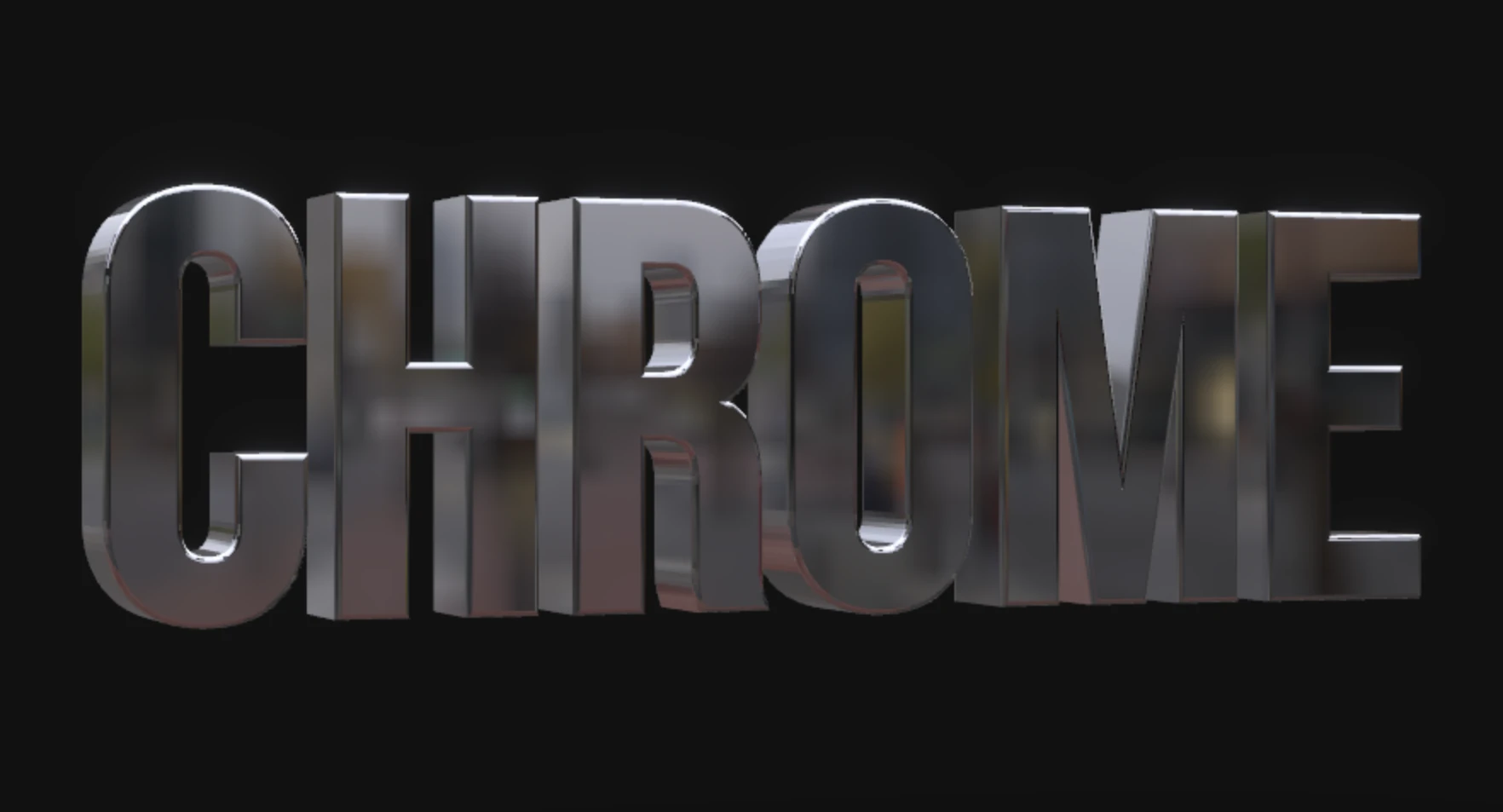
What happened to Photoshop’s 3D tools?
Adobe says Photoshop’s legacy 3D features were removed as of July 2024. That is not the same as saying all Adobe 3D workflows disappeared: Adobe’s documentation also describes a Photoshop beta workflow involving Substance 3D Viewer. Textrude is an independent option for rendered lettering, not a replacement for every Adobe 3D feature.
Choose the output you actually need
- A poster, thumbnail or title: a rendered PNG is usually the relevant output. Textrude lets you change text, material, lighting and camera before export.
- A layer-based visual effect: manual Photoshop layers and shadows can create a 3D-looking graphic, without restoring the old 3D workspace.
- Geometry for printing or a 3D scene: use a 3D modeling application. Textrude does not export editable models or print files.
From Textrude to your Photoshop composition
- Build the lettering. Open Textrude, enter your text and pick a font. Choose Chrome Hero, Gold Luxury, Matte Minimal or another material style.
- Match the composition. Adjust depth, edge shape, lighting and camera angle before export. These 3D settings cannot be changed in the finished PNG.
- Export a transparent PNG. Turn on the α switch beside the PNG scale options. Choose an aspect ratio and scale, then select Export PNG. Transparency is an export setting; you can keep a background visible while working.
- Place the image in Photoshop. Open your composition and place the downloaded PNG as an image layer. Position and scale it as needed. Keep the editor’s shared link if you want to revisit the 3D scene.
- Revise at the source. To change the lettering or perspective, reopen Textrude, adjust the scene and export again. Photoshop adjustments to the PNG do not update the original scene.
Troubleshooting the handoff
The PNG has a background. Check that the α switch is on before selecting Export PNG. The switch applies to still images, not video exports.
The edges or glow look different. Transparent capture omits post-processing and the ground. Keep a background in the export if the full preview glow is essential, or add finishing effects in the composition.
The text is too small. Choose a larger PNG scale before exporting. Keep enough room in the aspect-ratio frame so the letters are not cropped.
You need animation. Textrude can record rotating MP4 or GIF clips. These are rendered videos, not editable 3D scenes, and use the scene background.